Measurement Tool (Mark & Measure)
Use the Mark & Measure tool to take centimeter-accurate measurements.
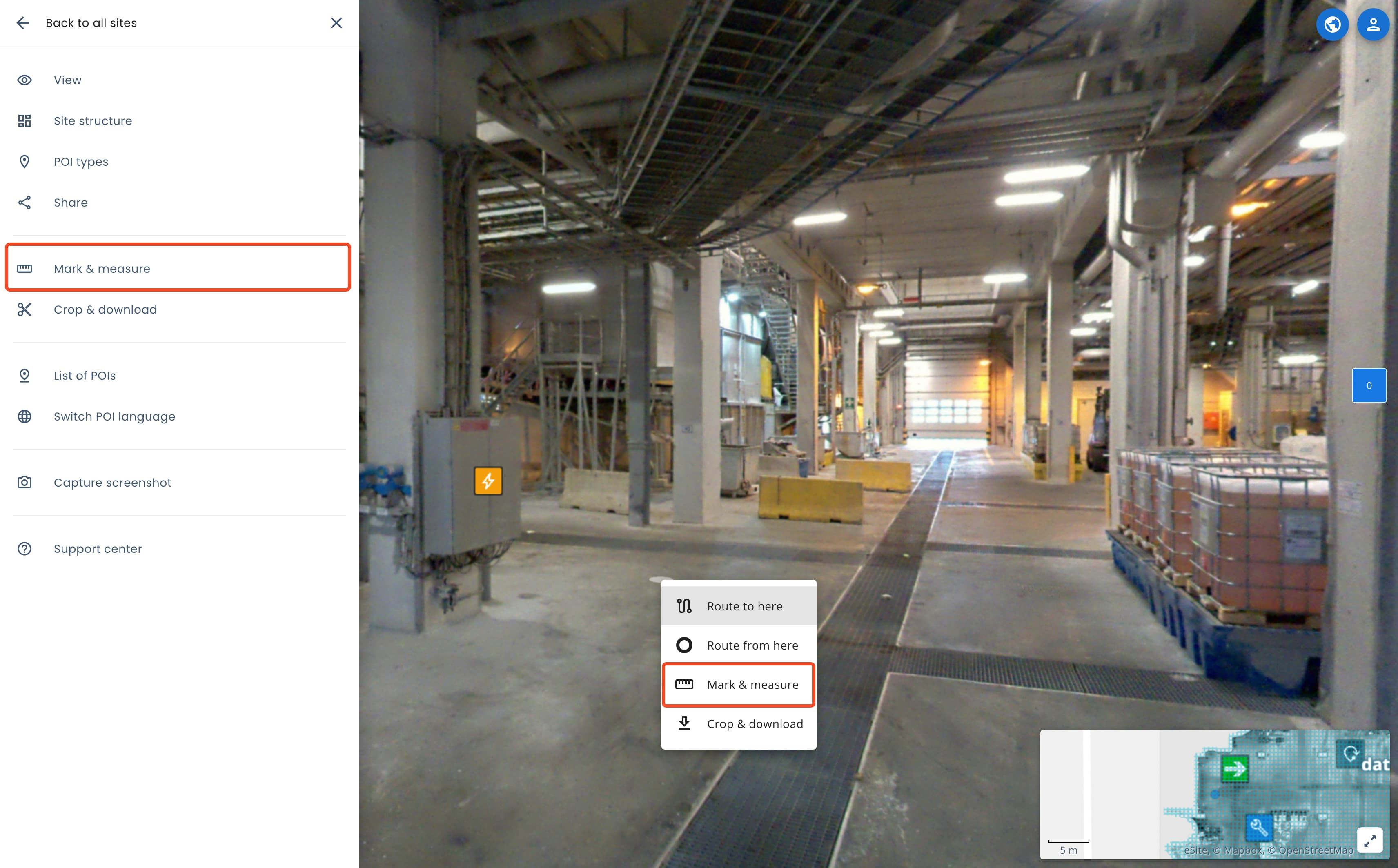
Open the tool by selecting Mark & Measure form sidebar or by right clicking on the main view.
Change the measurement units
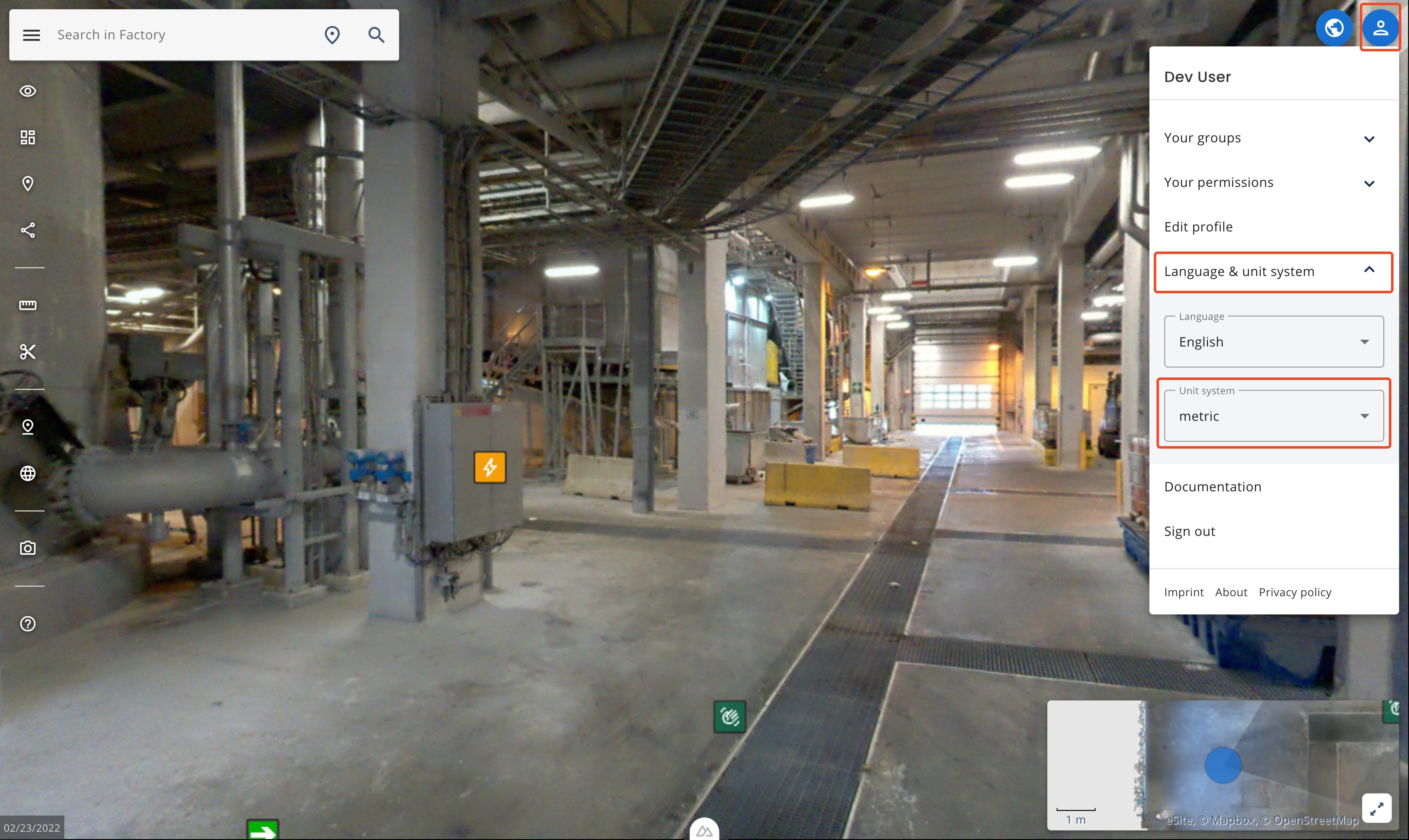
Before opening the measurement tool, check that your unit system is set to your preferred unit as the application may default to imperial units. To change to metric or vice versa do the following:- Click on the user icon from the top right corner
- Select Language & Unit System.
- Select Unit system.
- Selection is automatically saved.
Measurement tool interface
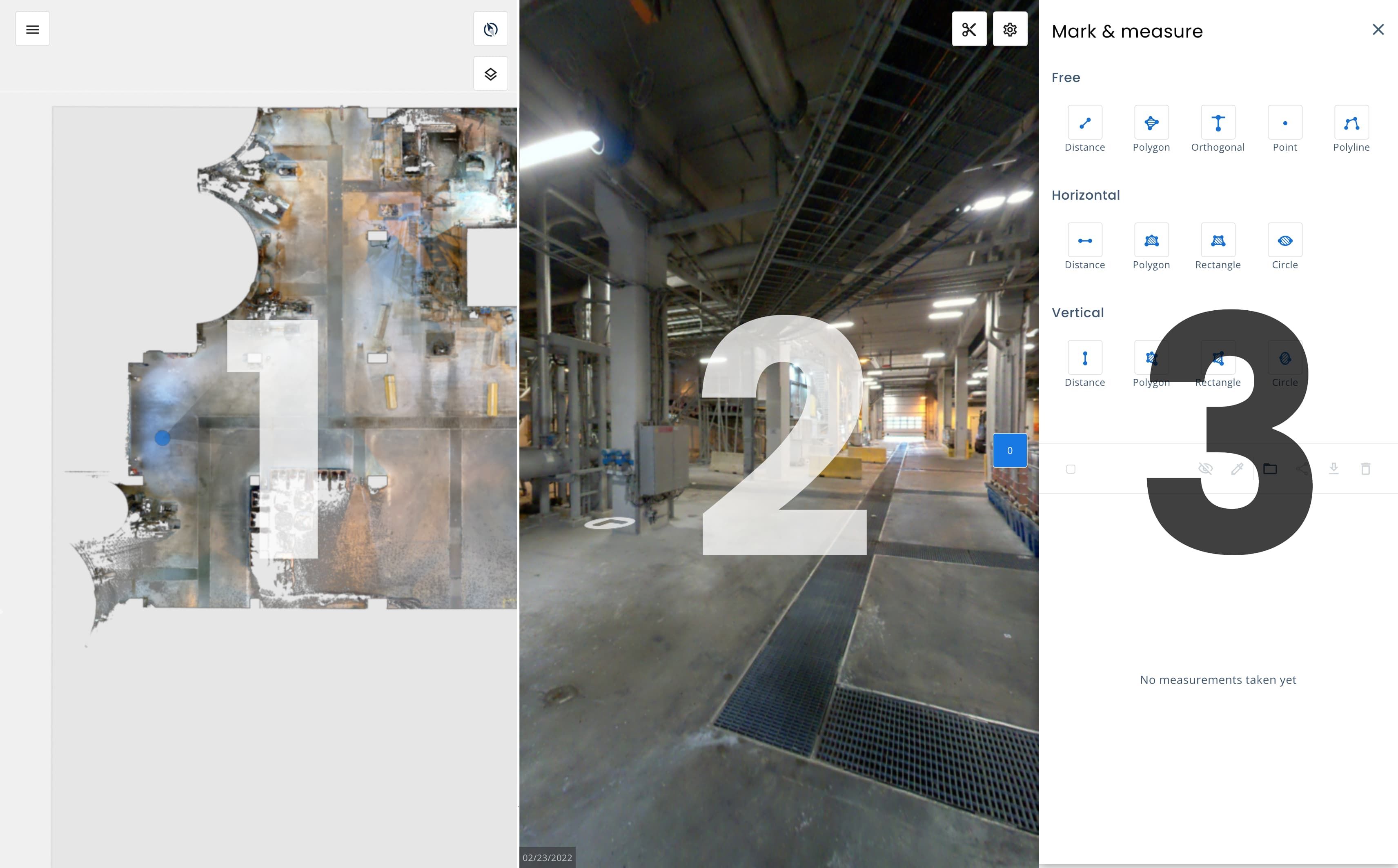
| Number | Name | Usecase |
|---|---|---|
| 1 | Map view | Use to take measurements |
| 2 | Panorama / point cloud view | Use to take measurements |
| 3 | Tools | Select tools, see list of measurements and edit measurements. |
Changing the size of measurement tool windows
Tools explained
Free
Measures distance/area, including both height and width.
Tools available
- Distance | Distance between point a to b
- Polygon | Measure area with as many sided polygon as you want. Click on the first point to end measurement.
- Orthogonal
- Point
Horizontal
Locks to horizontal axis. Will not count height difference. Great for measuring width or general area.
Tools available
- Distance | Distance between point a to b, horizontal axis locked
- Polygon | Measure area with as many sided polygon as you want. Click on the first point to end measurement. Horizontal axis locked.
- Rectangle | Measure rectangle area. Click on the first point to end measurement. Horizontal axis locked.
Vertical
Locks to vertical axis. Will not count horizontal difference. Great for measuring height or wall area.
Tools available
- Distance | Distance between point a to b, vertical axis locked
- Polygon
- Rectangle
Taking measurements
Select a tool and start taking measurements.
- Select a tool, by clicking it
- Select point where to start measurement
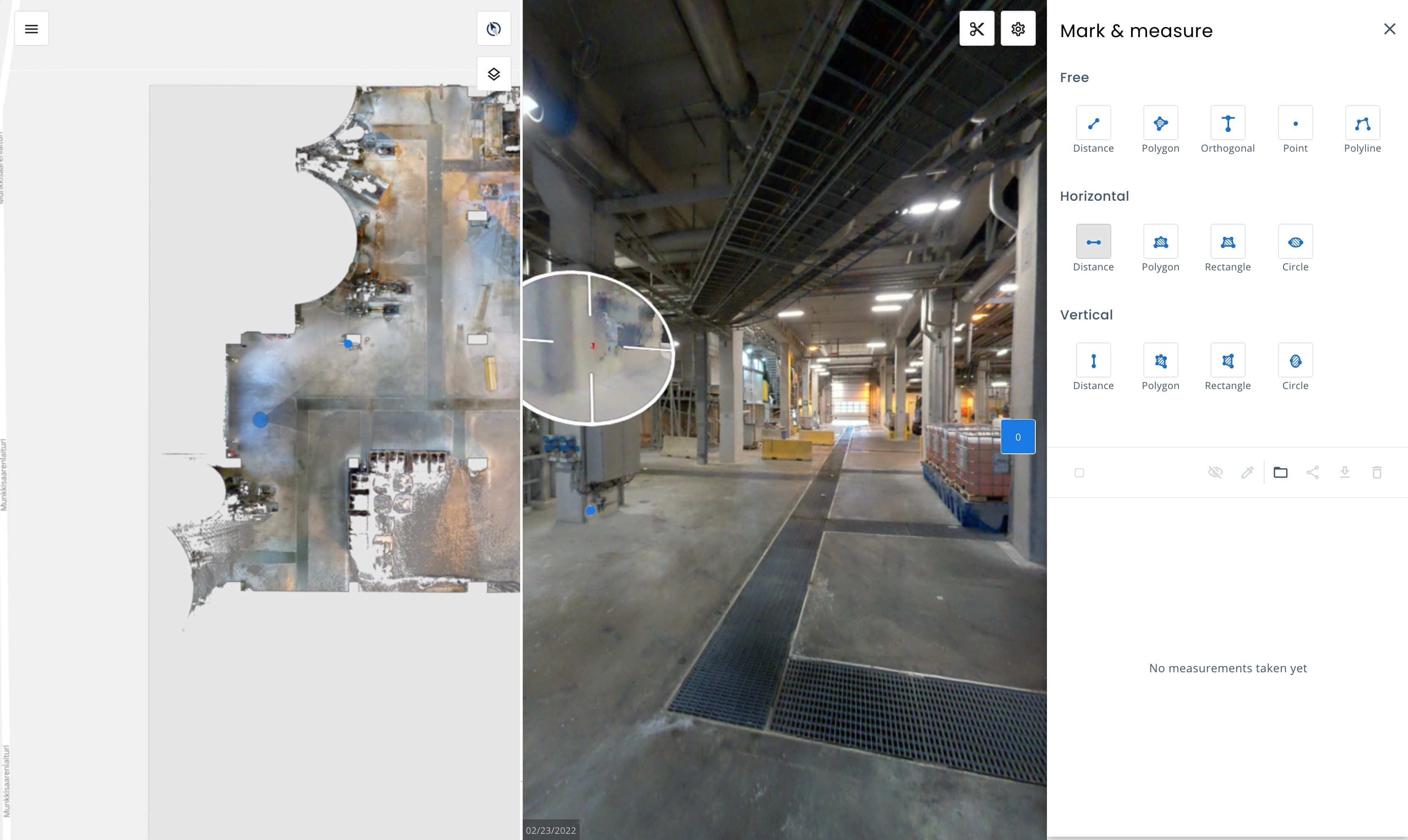
- Select point to end measurement
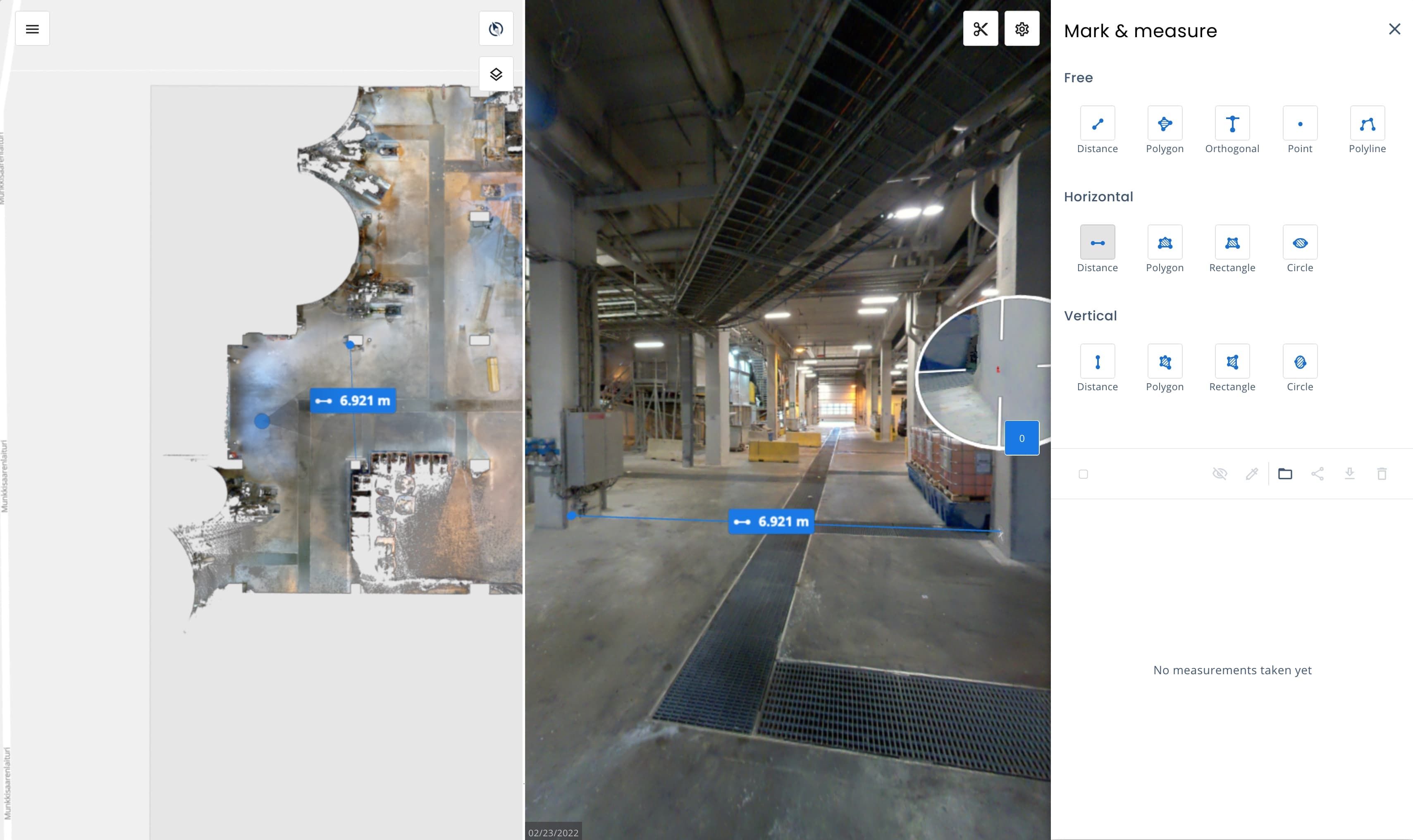
- After the measurement is done, you can edit the measurent in the 3D view or from the list where all measurement are saved under the tools.
Editing measurement details
You can change the colour, hide or delete the measurements. Form the tools menu, you can also rename and group measurements.
Additional options available
There are additional helpful tools available on the Mark and Measure. Use the Crop view to limit the visible area, show cursor coordinates, orthograpic projection.
Point Of Interests (POI)
Point of interests also known as POIs are a way to add and share information about locations. You can add information and attachments like images, PDF-documents or even embed webpages inside POIs.
Crop & Download
Used to crop and download pointcloud data in various formats for usage in programs outside of eSiteview. This tool can be used also as a limit box (to see the pointcloud withour roof or a wall).