Tools & features
Crop & Download
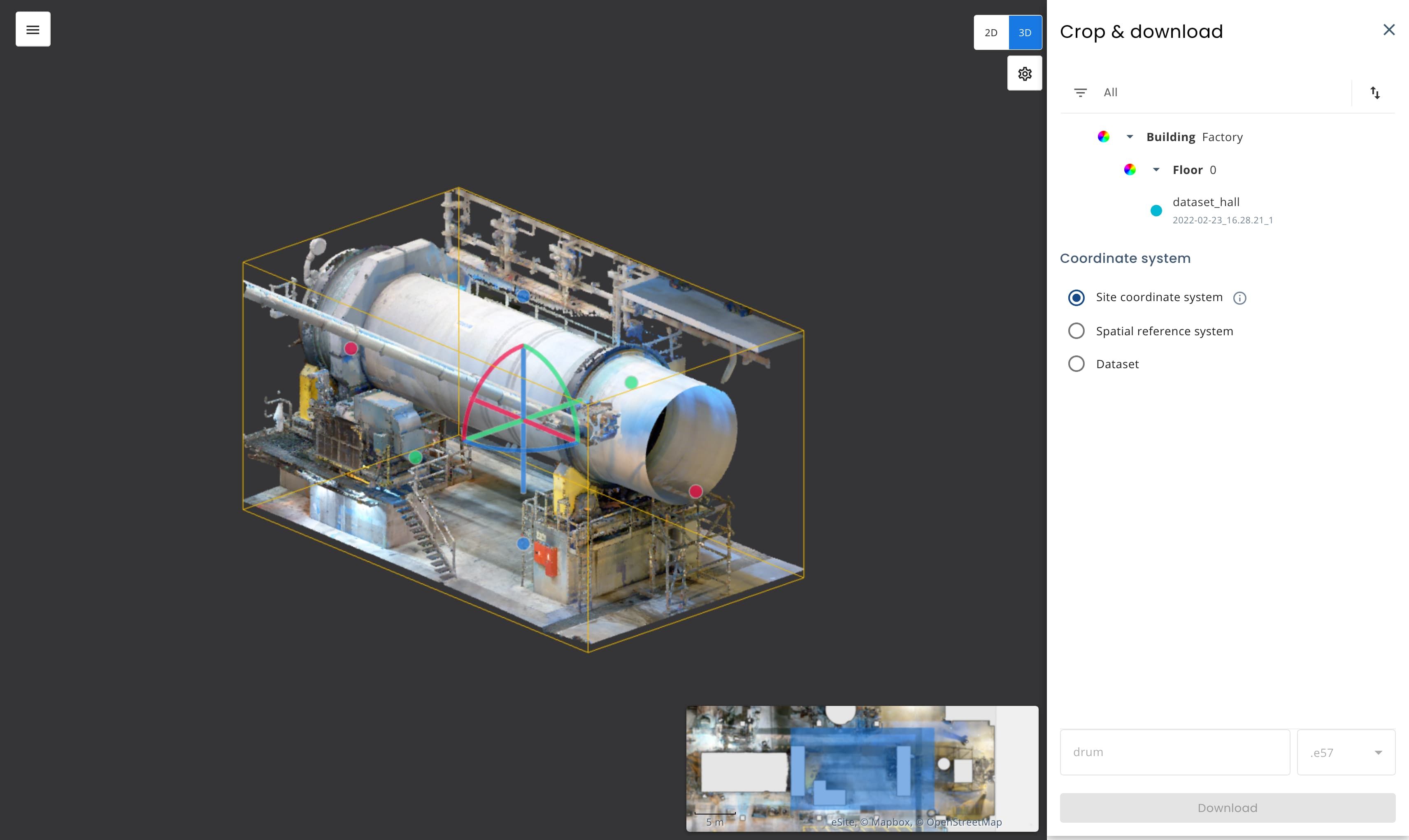
Used to crop and download pointcloud data in various formats for usage in programs outside of eSiteview. This tool can be used also as a limit box (to see the pointcloud withour roof or a wall).
Usage
- Select the Crop & Download tool from sidebar or by right-clicking and selecting Crop & Download.
- A window with a simple tutorial will pop-up. You can close it with the x.
- You can edit the bounding box with 2D or 3D view.
- In 2D view it the tool locks in to the floor you are in.
- In 3D view you can change the height also, and edit tou bounding box with visualisation, of the end pointcloud. You can also chnage the view to orthograpic projection from the settings.
- (Optional) Select datasets you wish to include.
- Select a Coordinate system or leave it at Site coordinate system.
- Name the download file and select format you wish to download.
- Click Download. The application will process the point cloud, this will take some time (approx 5 to 30 minutes depending on the size of the download). Please have the eSiteview window open until the download has started.
If you have a large site and need the full site point clouds, please contact us. We recommend using this tool for smaller area downloads.