Miscellaneous
Here are some micellanious features that you might be interested.
Change password
If you want to change your password:
- Login to your instance.
- Click on the User icon from the top right corner.
- Select Edit Profile.
- Under Change Password enter your current password, and then a new password.
- Click Save.
If you have forgot your password please contact us.
Change the measurement units
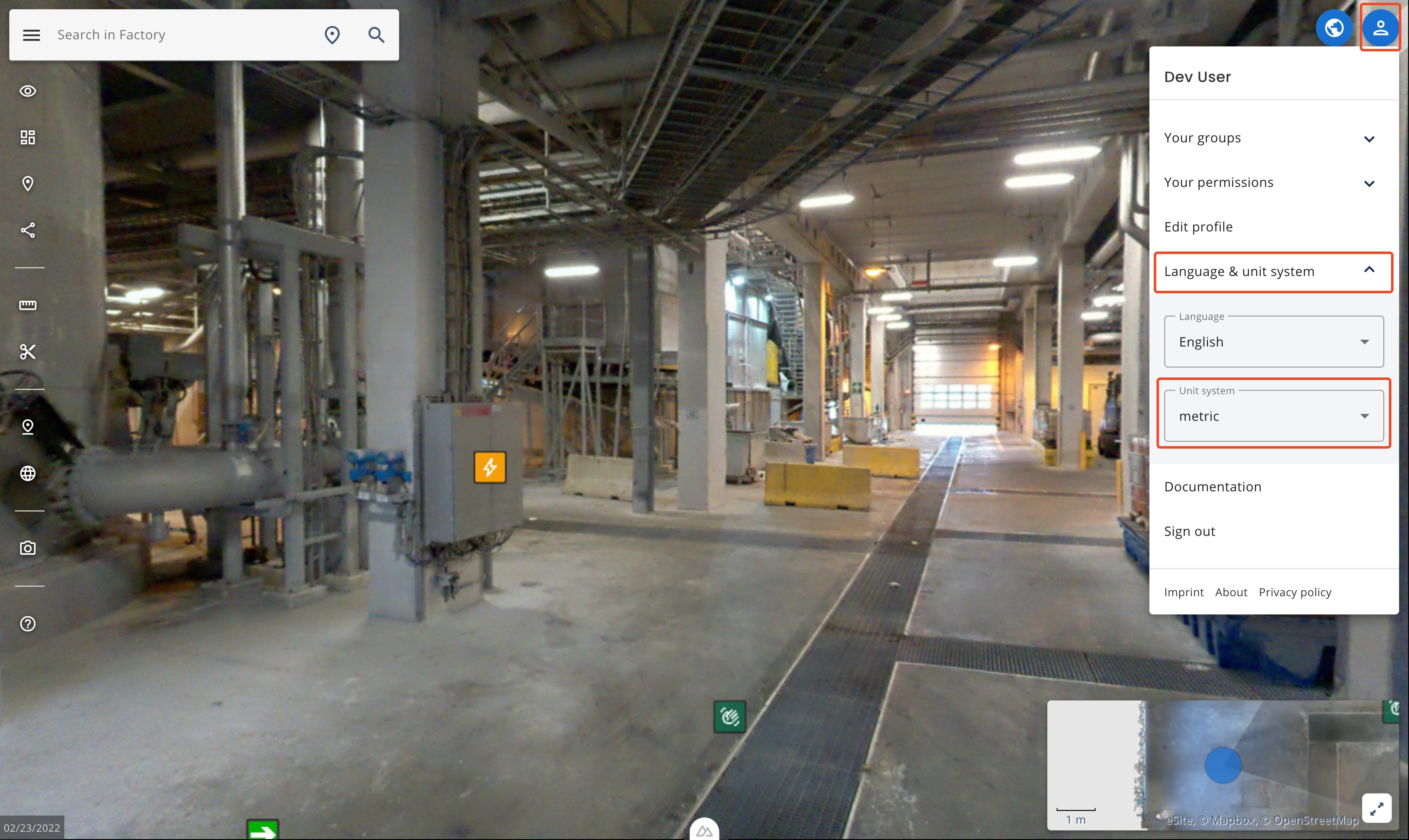
Sometimes the units are set to imperial by default. To change to metric or back to imperial do the following:
- Click on the user icon from the top right corner
- Select Language & Unit System.
- Select Unit system.
- Selection is automatically saved.
Clear cookies and site data
We've identified a rare issue in which the measurement tool (and its data) sometimes fails to load. To fix this, follow the steps below to clear any cached data that might be interfering with the app. You can also use these same steps to reset your eSiteview site data if you encounter other problems.
Automatically
Navigate to yourcompanyname.esiteview.com/reset replace yourcompanyname.esiteview.com with your instance link and it will clear the cookies and local cache for eSiteview.
Manually
Chrome
- Select the icon before the URL address in the URL bar.
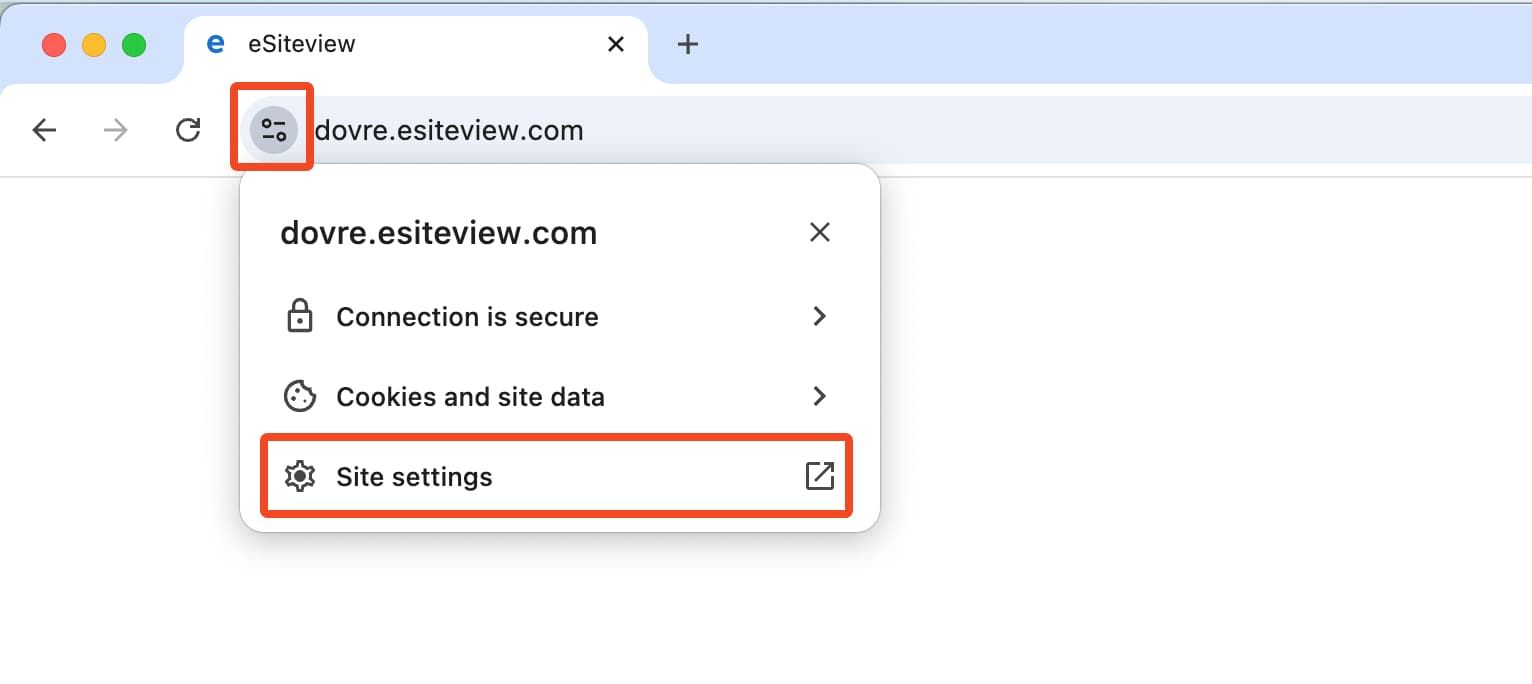
- Select Site settings
- In site setting, click the Delete data button.
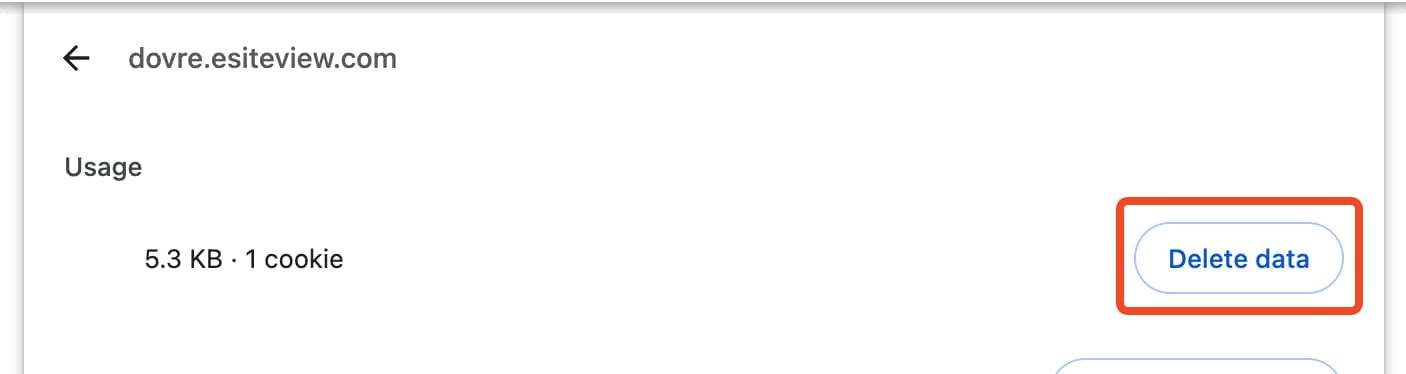
- Reload eSiteview.
Firefox
- Select the lock icon before the URL address in the URL bar.
- Select Clear cookies and site data....
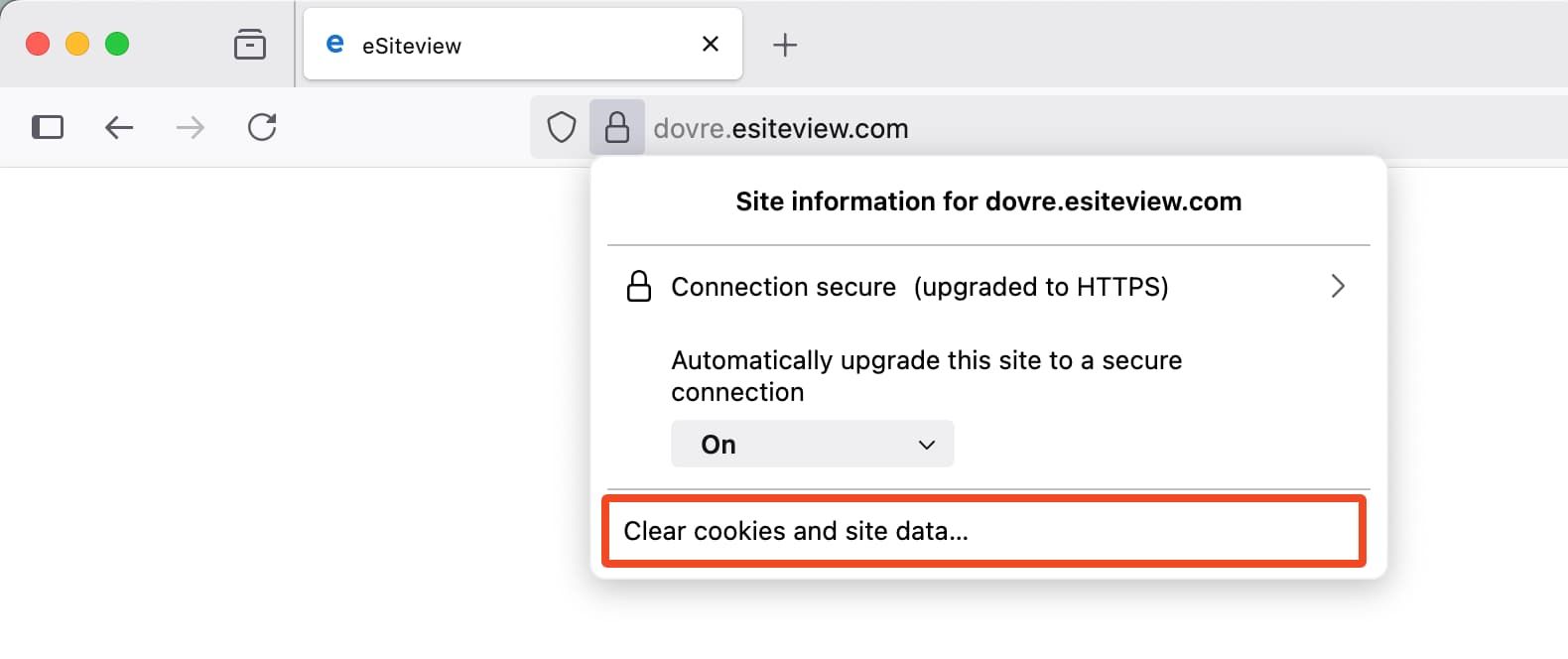
- Confirm removal of cookies and site data.
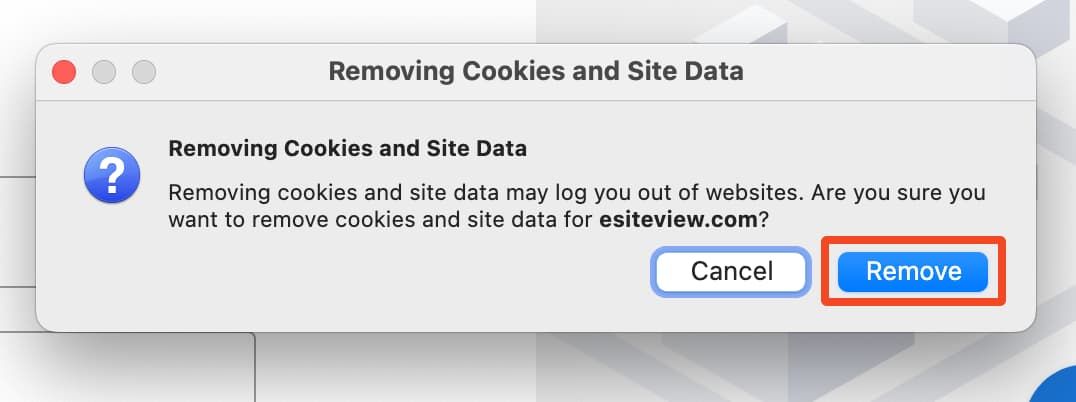
- Reload eSiteview.
Crop & Download
Used to crop and download pointcloud data in various formats for usage in programs outside of eSiteview. This tool can be used also as a limit box (to see the pointcloud withour roof or a wall).
Add eSiteview to Your Mobile Device
Here are some micellanious features that you might be interested.