Features
Here you can find basic information about all of the features available in eSiteview. Some features have their own page, where we go in depth with the tool/feature.
We know here is a lot of infromation. You can always come back later to check the rest of the features and tools.
Point Of Interests (POI)
Point of interests also known as POIs are a way to add and share information about locations. You can add information and attachments like images, pdf-documents or even embed a website inside POIs.
We have a dedicated page for creating and editing POIs. Take a look!
Viewing POIs
Click the POI icon to open it. Hover over the icon to see the name of the POI.
You can interact with the things in the POI, like videos or PDF files.
Close the POI with x.
Search
Serach for Point Of Interests (POI), rooms (if set up), buildings (if set up) and custom attributes (if set up).
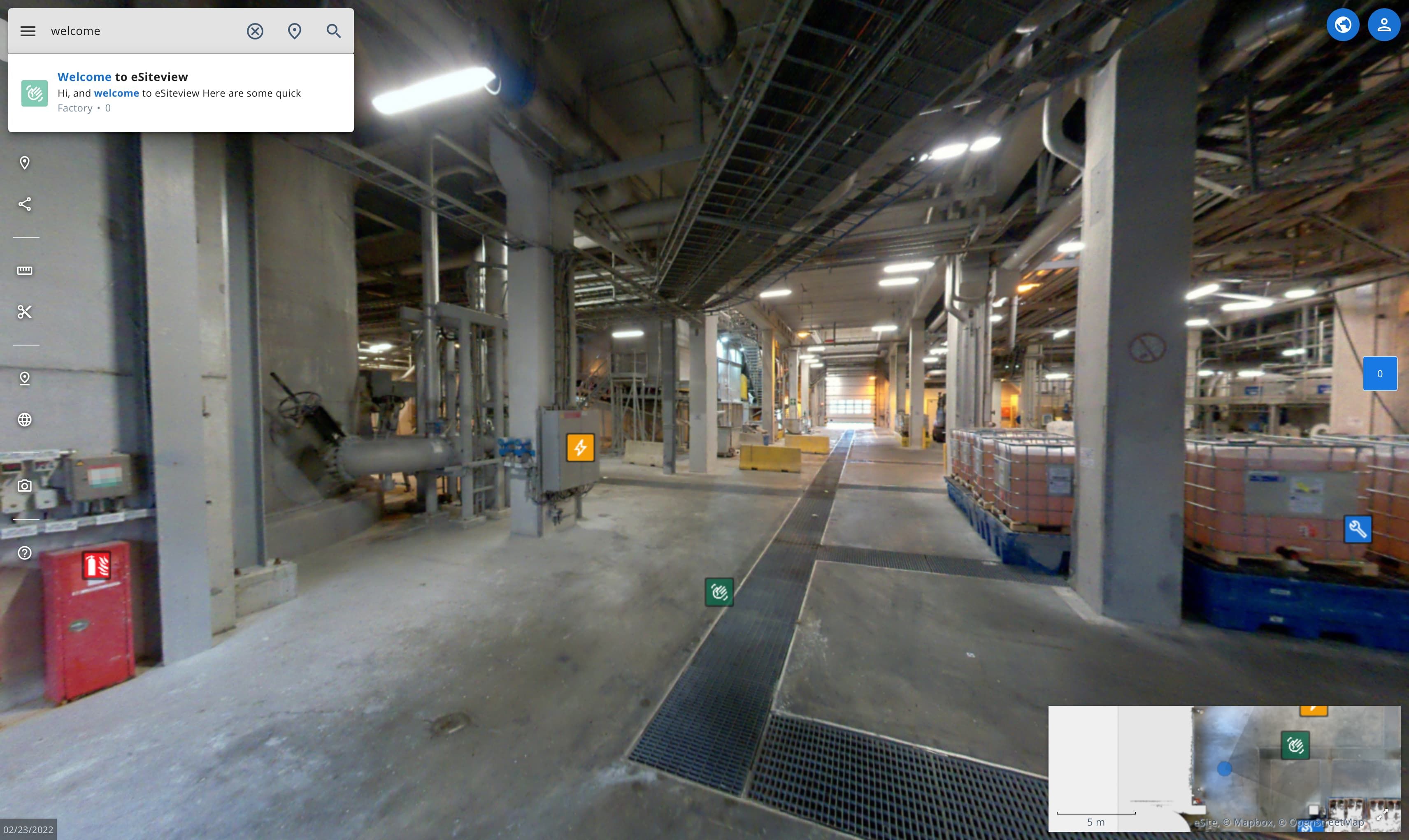
Click and write what you are searching.
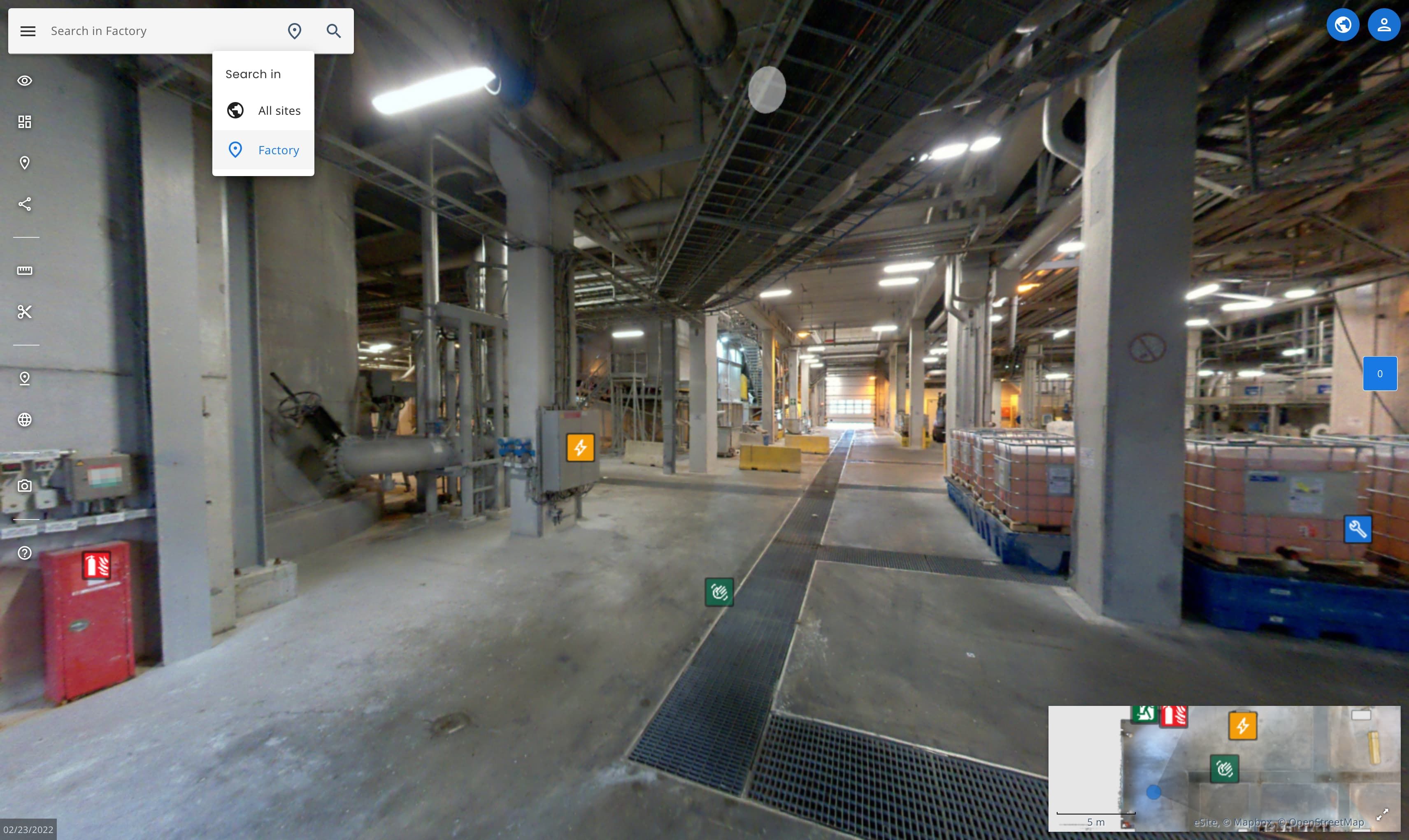
If you have multiple sites you can select to search also from all of the sites available to you.
Sidebar menu
Small icons on the left side of the screen. You can use the menu icon the see the tool names more easily.
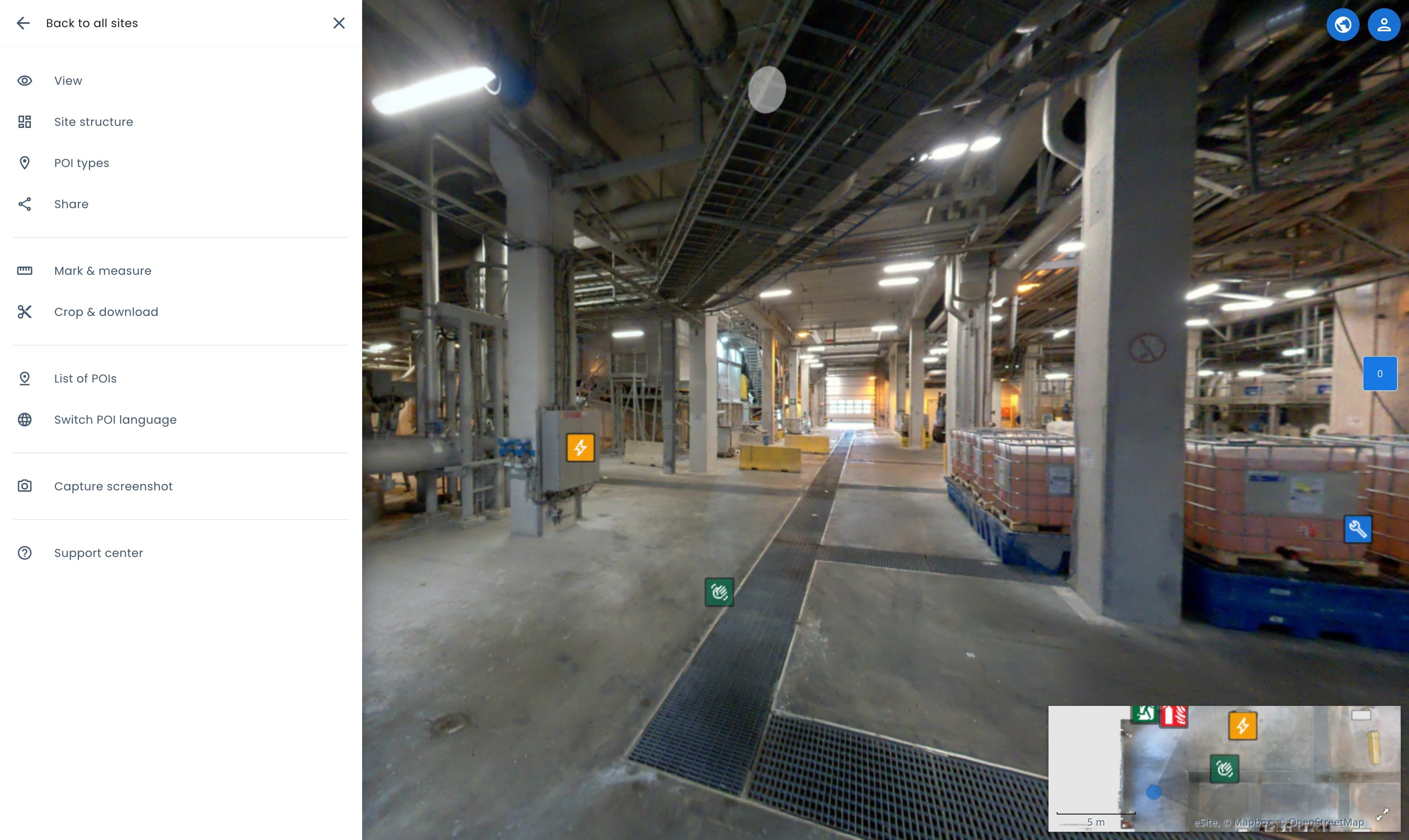
All of the features available in the sidebar:
View
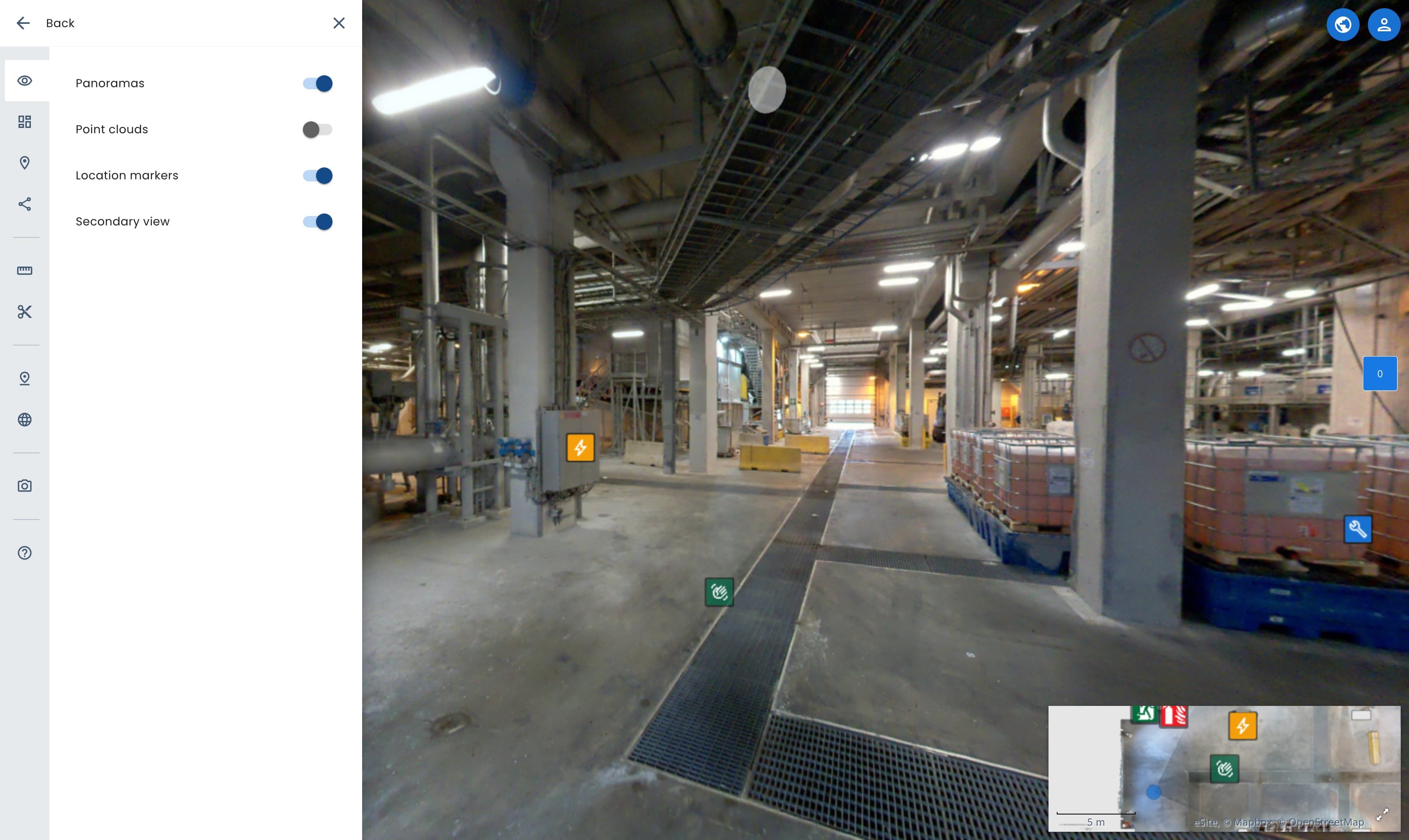
Toggle between different views:
| View | Description |
|---|---|
| Show pointcloud | Toogles the pointcloud view on/off. Hides panoramas when selected. Read more about pointcloud view. |
| Show panoramas | Toggles panorma view on/off. Note: you can have pointcloud and panorama view at the same time. |
| Show secondary view | Toggles the the map on/off. |
| Show location markers | Toggles the white location markers on/off. |
Datasets
See all of the datasets and site entities in the site. Datasets are individual scans of areas, floors or/and rooms.
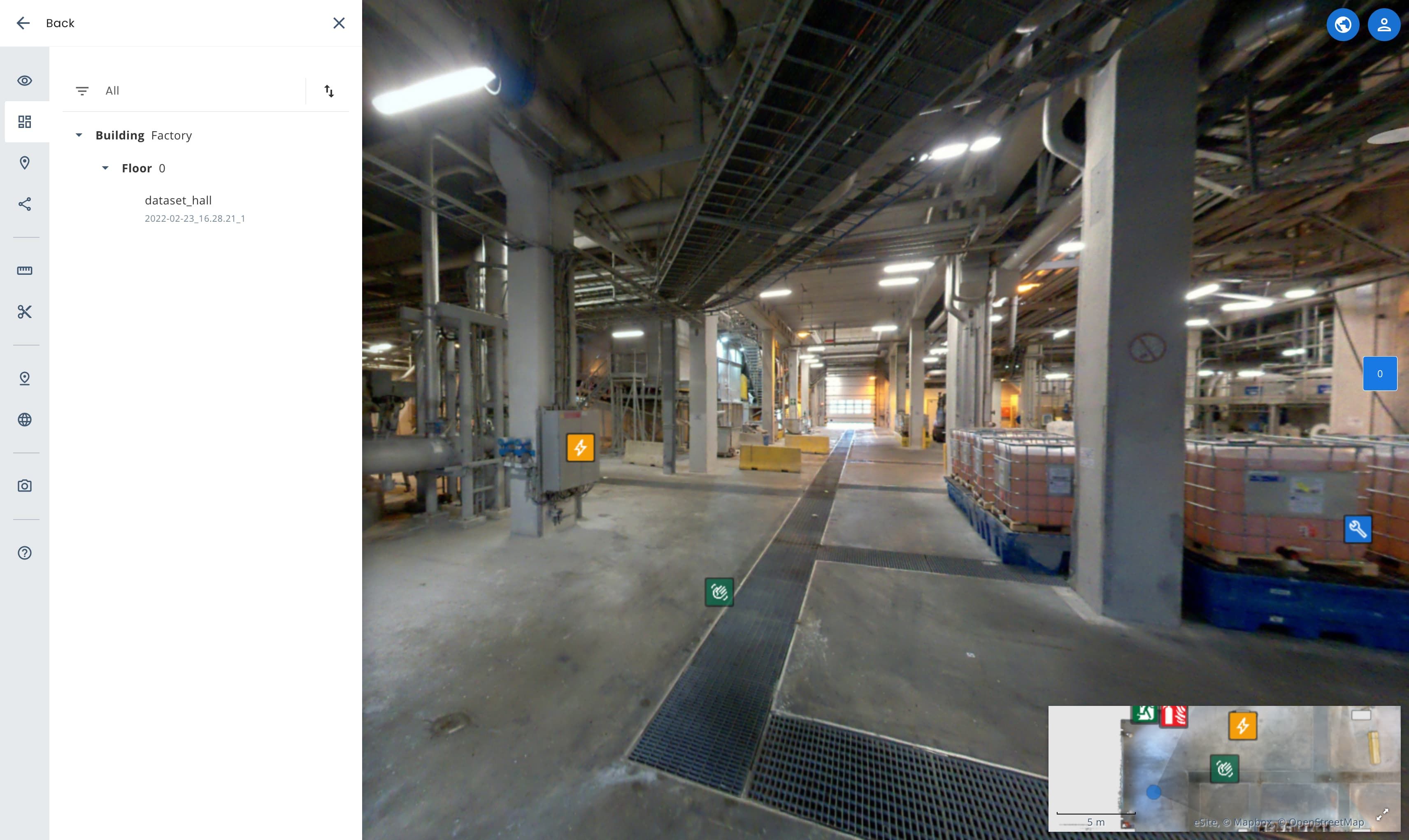
By default the menu is showing only site entities. Site entities are part of the site model, that includes buildings, floors and rooms. Site model is created by eSite but in case you are interested to improve and add rooms please let us know.
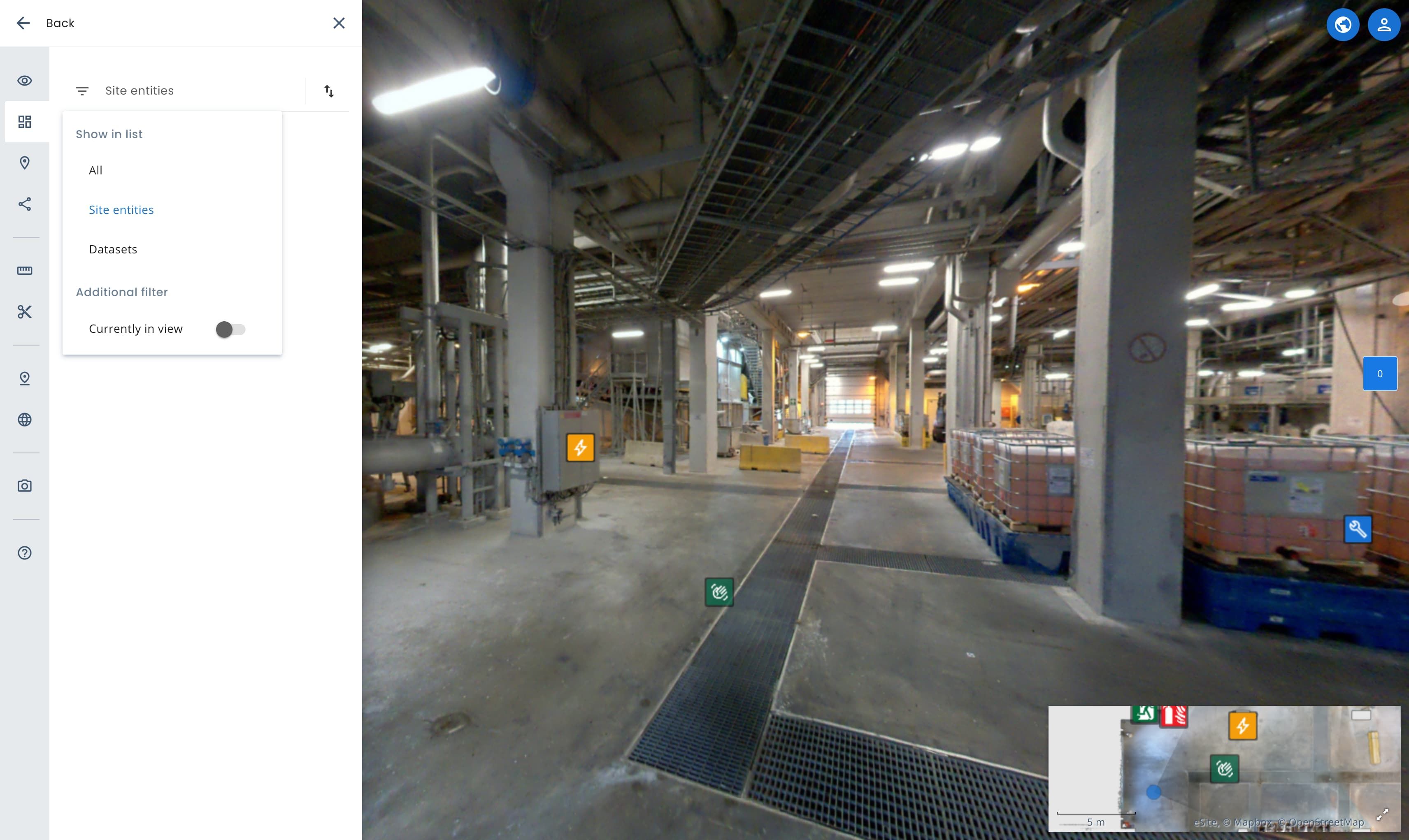
You can toggle between All, Site entities and Datasets from the sort button.
See below what you can do with each mode.
| Sorting mode | Description |
|---|---|
| All | Shows both site entities and datasets structured where the datasets are located. |
| Site entities | Default sorting mode. See different site entities and jump between them. |
| Datasets | Shows only datasets in a list and jump between them. When in pointcloud view, you can show or hide individual datasets. |
You use the locate button to jump between the site entities or datasets when hovering over it.
POI Types
- Toggle on/off different POI categories.
- Create, edit and remove POI categories.
- Turn on/off all POI categories, this will hide all pois.
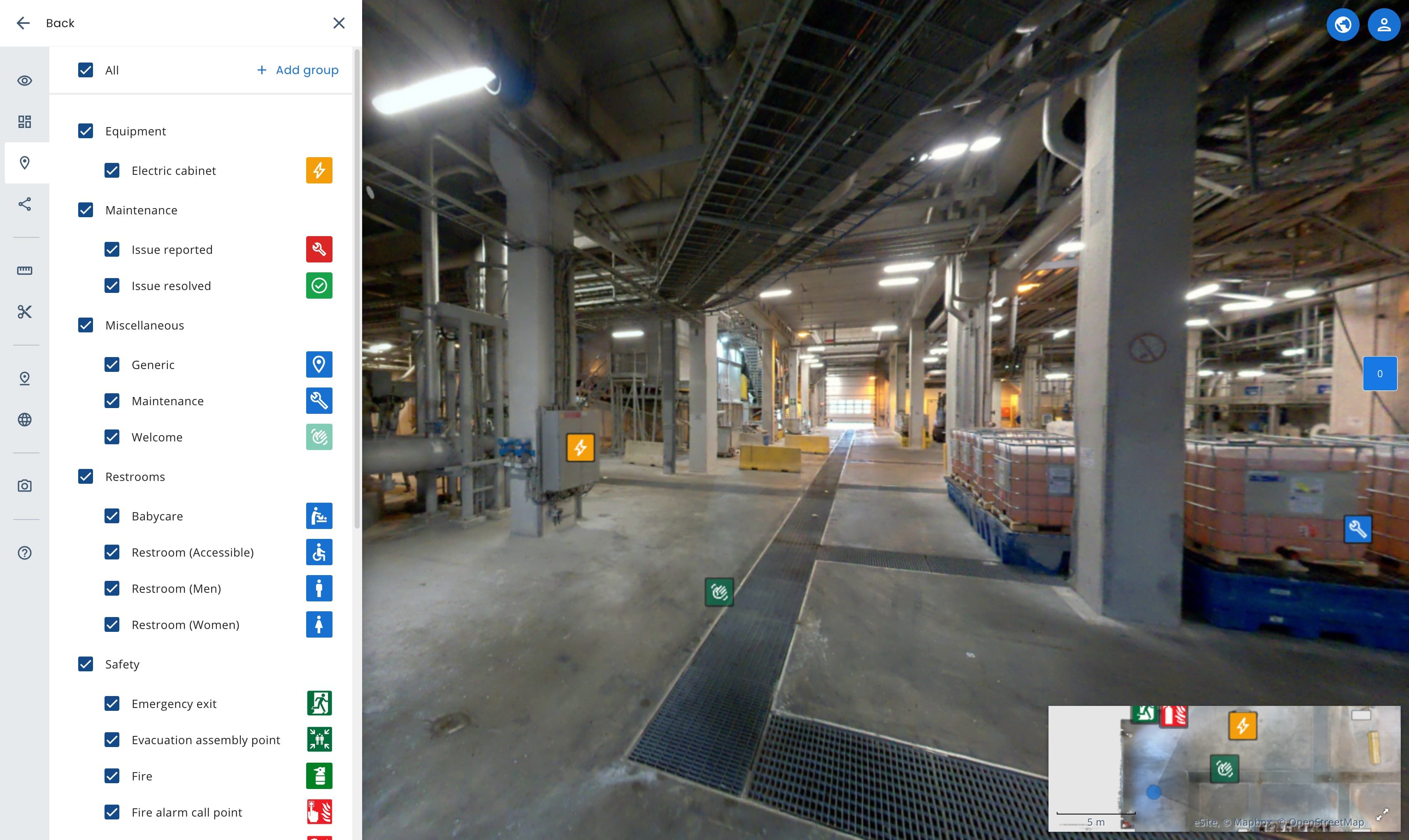
Learn more about poi categories.
Share
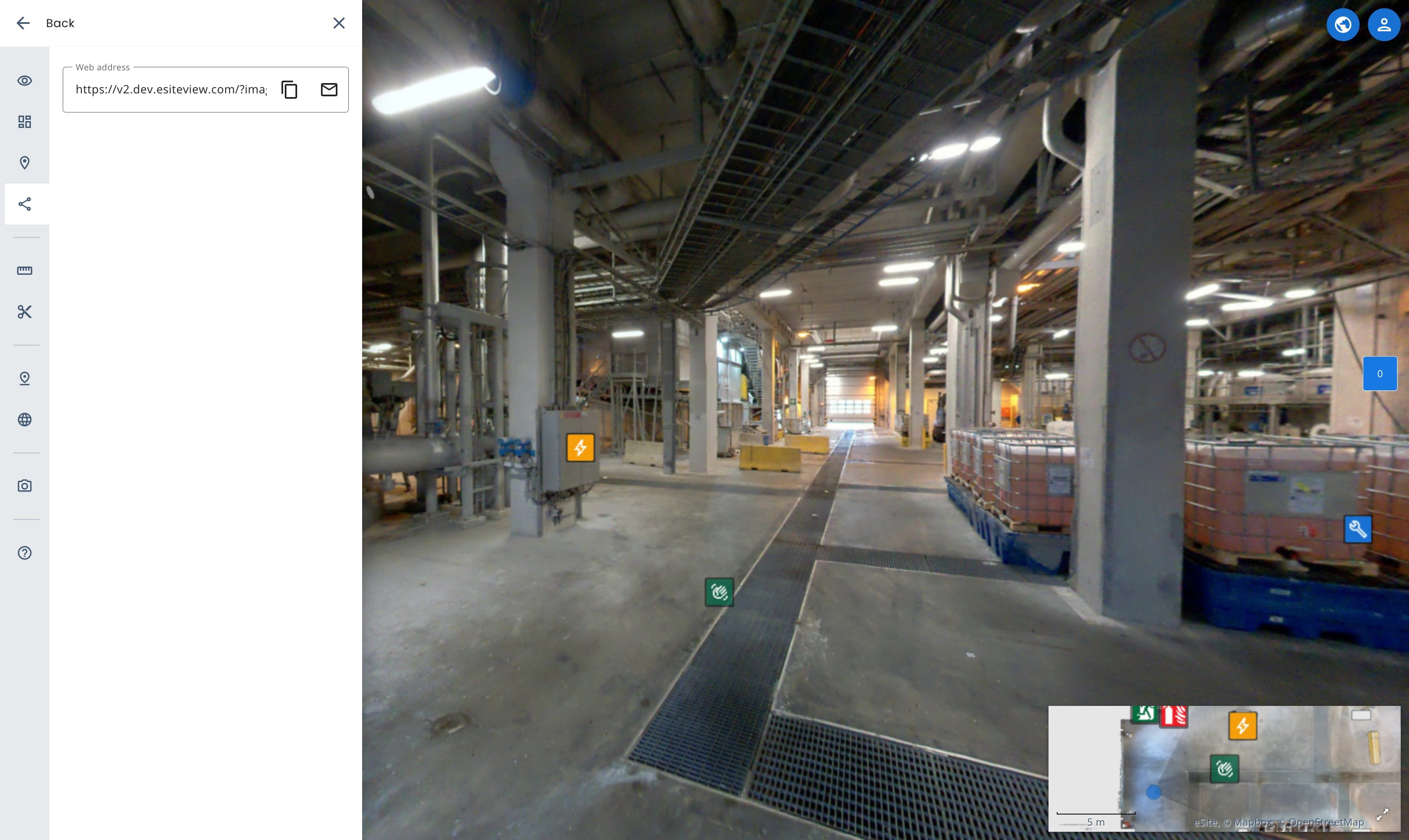
Copy/share link to current view.
Mark & Measure
Learn more about Mark & Measure tool.
Crop & Download
Learn more about Crop & Download tool.
List of POIs
Lists all poinst of interest for the current site. Filter and open to the POIs location by clicking the POI from the list.
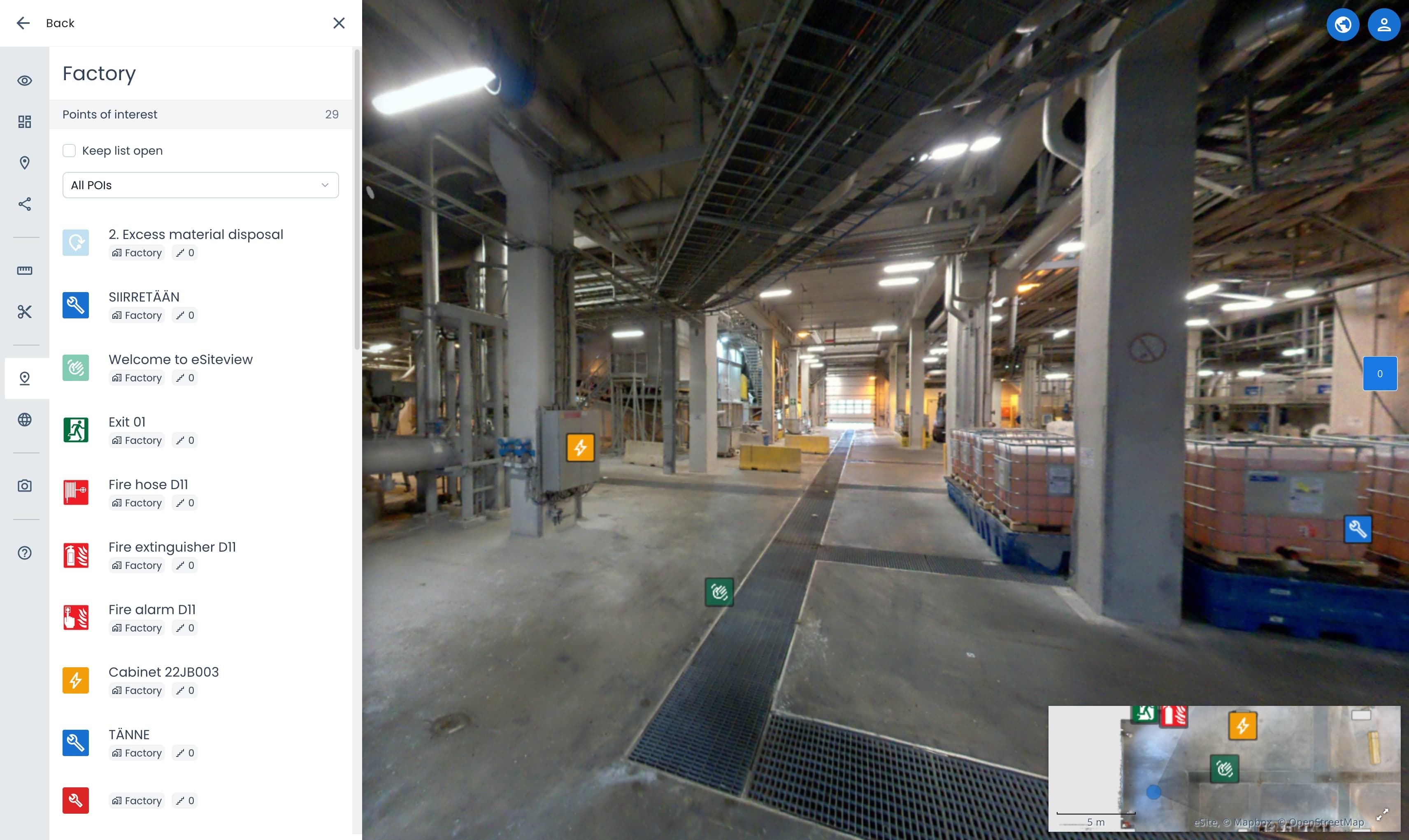
- Use the Keep this list open to only move to the POI location and keep the POI List open.
- Select a POI Type from the list to filter list by the selected type.
Change POI language
This will switch between English and Finnish language for the POIs and eSiteview language. Full Finnish language support is coming later.
Capture screenshot
Captures a screenshot of the view without UI elements like map, search, sidebar. POIs in the panorama view will be shown.
Support center
Open this documentation from the instance or find contact details in case you have any questions.
Map
The map or secondary view is a easy way to move to around your site.
Learn more about using the map.
Routing
It is possible to create routes between POIs or custom locations.
Routing instructions are still work in progress and will be available soon
Point clouds
Open the view panel and activate Point clouds to see point cloud options.
Hide walls & celings
This option will make the walls and celings transparent from the outside (the side where the scan has not been scanned). If you have other datasets enabled like a outside dataset or the room next to the wanted dataset, you can hide those in datasets.
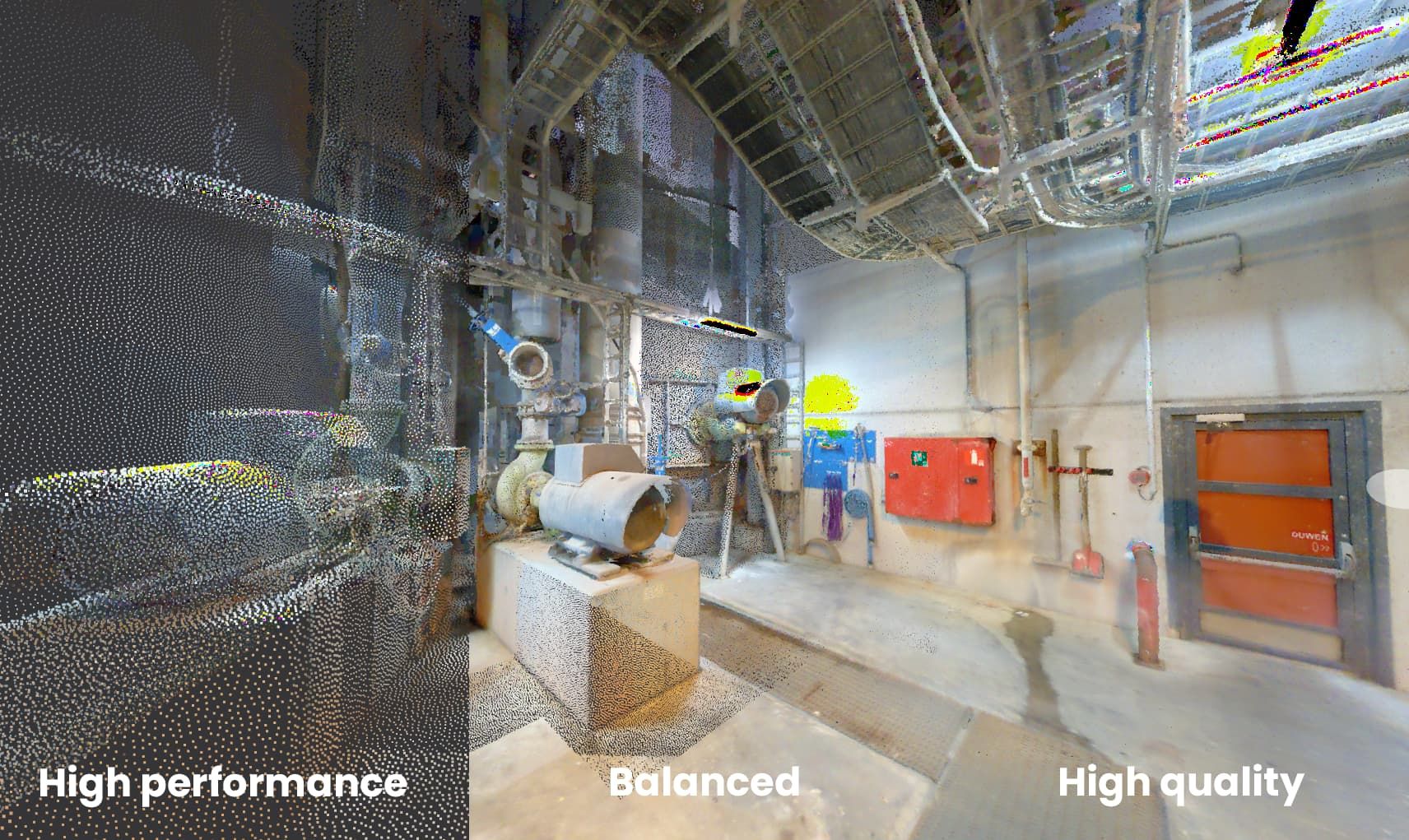
Quality
Select a preset or edit the values yourself.
| Preset | Best for |
|---|---|
| High performance | Settings for best performance. |
| Balanced | (Default) Balanced setting to run on most hardware. |
| High quality | Settings to show large areas with great detail. |
| Outside | Setting to show outdoor or large areas with balanced detail. |
If you need even more quality or optimize the settings for your liking, edit the values from dropdown icon.
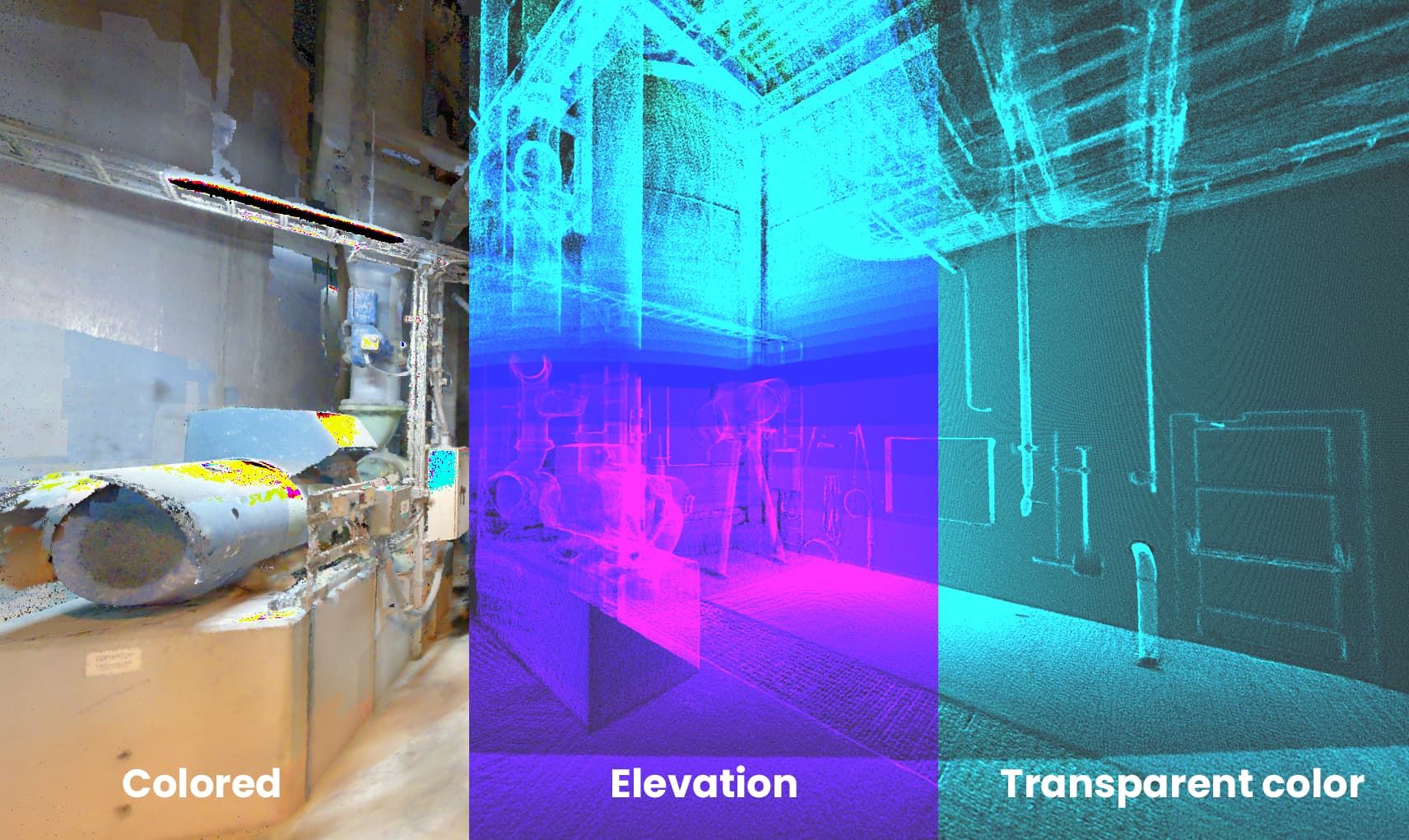
Perspective Appearance
| Option | Usage |
|---|---|
| Coloured | (Default) Normal coloured point cloud. |
| Elevation | Colours the points with different colours depending on the height. |
| Transparent color | Shows pointcloud in different colour(s). Use the dropdown to reveal more settings |
Use the dropdown to reveal more settings for all of the options.
Moving in Point Cloud
Fly controls:
| Key | Action |
|---|---|
| W | Fly forward |
| A | Fly left |
| S | Fly backward |
| D | Fly right |
| Q | Fly upwards |
| E | Fly downwards |
| Shift + any | Fast flight |
Mouse controls:
| Key | Action |
|---|---|
| Mouse click and drag | Look around. |
| Double click | Move to the clicked position. |
| Shift + Mouse click and drag | Pan. Drag from pointcloud to move. |
| Ctrl + Mouse click and drag | Orbit. |
| Middle Mouse button and drag | Orbit. |
| Shift + Scroll | Changes the FOV of the view. |